
Blog
How to secure a WordPress site
“Who would bother with our little website? We’re not a bank.” That is the line we hear most often from owners whose WordPress site has already been hacked. But nobody picks you on purpose. Bots scan millions of addresses every day, looking for known plugin vulnerabilities, weak passwords and forgotten staging copies. If your site […]
- 31 October 2026
- 16 min read
Articles
How to secure a WordPress site
“Who would bother with our little website? We’re not a bank.” That is the line we hear most often from owners whose WordPress site has already been hacked. But nobody picks you on purpose. Bots scan millions of addresses every day, looking for known plugin vulnerabilities, weak passwords and forgotten staging copies. If your site has an open window, it will be found automatically, with zero interest in what your business actually does.
The consequences, however, are very personal: spam pages in Google’s index, a browser warning that the site may be harmful, junk email sent from your domain, visitors redirected to scams and, for a store, leaked customer data. The good news: most attacks are stopped not by expensive “cybersecurity” but by discipline in a few basics. Below are the steps we put in place on clients’ sites, in the order we recommend.
Why ordinary WordPress sites get hacked
WordPress itself is not “full of holes”. The core is maintained by a large team, vulnerabilities are found and patched quickly, and minor security releases install automatically. Problems almost always appear around the core: in plugins and themes, in hosting configuration, and in the habits of the people who have access to the dashboard.
Popularity works against you: WordPress powers a huge share of the web, so one flaw in a popular plugin opens thousands of sites at once, and attacks run automatically at scale. In our experience, the most common causes of a hack look like this:
| Cause | What it looks like in practice | What closes the gap |
|---|---|---|
| Outdated plugins and themes | A plugin nobody has updated in years, with a publicly disclosed vulnerability | Regular updates, removing what you don’t use |
| Weak or reused passwords | The username admin, a password based on the company name, the same password as the email account | A password manager, 2FA, login attempt limits |
| “Nulled” premium plugins | A premium theme downloaded for free from an unofficial site | Official sources and licenses only |
| Excessive access | A former contractor still has an administrator account | Least-privilege roles, regular user reviews |
| Weak hosting and configuration | Old PHP, unencrypted FTP, several sites sharing one account | Modern hosting, correct file permissions, SFTP |
No single measure is a hundred percent guarantee. That is why we build protection in layers: if one fails, the next one stops the attack, or at least lets you spot it fast and recover without losing anything.
Step 1. Updates: core, plugins, themes and PHP
If you do only one thing from this article, make it updates. Most mass hacks exploit vulnerabilities that were patched long ago; the fix simply was never installed.
Here is how we organize updates on the sites we maintain:
- WordPress core. We leave minor security updates on automatic; there is no good reason to switch them off. Major versions go in within a few days of release, tested on a staging copy first.
- Plugins and themes. We check for updates at least once a week. Simple, well-proven plugins get auto-updates; critical ones such as the store, the page builder or payment forms are updated manually after testing.
- PHP version. We make sure the server runs a PHP version that still receives security fixes. An outdated PHP is a vulnerability no plugin can patch.
- A backup before every update. Always. If something breaks, we roll back in minutes rather than days.
The second rule matters just as much: fewer plugins means fewer doors. Every plugin is someone else’s code running on your server. During audits we regularly find 30 to 40 plugins installed, of which maybe half a dozen are actually in use. A deactivated plugin is still a risk: its files stay on the server and may be reachable from outside. So we don’t just deactivate what’s unnecessary, we delete it.
Before installing a new plugin we check when it was last updated, how many active installs it has and whether the author answers support questions. A plugin untouched for over a year is a reason to look for an alternative. And we never install “free” copies of paid themes and plugins from unofficial sites: they often ship with malicious code inside, so the owner effectively uploads the backdoor themselves.
Step 2. Passwords, roles and two-factor authentication
The second most common way in is the login page. Bots try popular passwords or replay credentials leaked from other services. If an admin reuses an old forum password, it is only a matter of time.
Passwords and usernames
- Every user has a unique password of at least 16 characters, generated by a password manager (Bitwarden, 1Password, KeePass or similar). Nobody needs to remember it.
- We never use usernames like admin, administrator or the domain name. Those are the first things bots try.
- Passwords are not sent over WhatsApp, Telegram or email, and are not kept in chat history. Credentials are shared through a password manager with a shared vault.
- We also change the passwords for hosting, the database, SFTP and the mailbox used to recover dashboard access. A compromised mailbox means a compromised site.
Two-factor authentication
2FA gives one of the best returns for the effort: even with a leaked password, nobody gets in without the code from your phone. WordPress core has no 2FA, so we add it with a plugin, such as the official Two Factor plugin, Wordfence Login Security or the 2FA module of a full security suite. It is mandatory for administrators and editors and recommended for anyone who can publish content.
We recommend codes from an authenticator app or hardware security keys rather than SMS. And we always store the backup codes in the password manager: one person losing their phone should never lock the whole team out of the site.
Least-privilege roles
WordPress ships with standard roles: Administrator, Editor, Author, Contributor and Subscriber. A copywriter only needs the Author role, a content manager needs Editor, a store manager needs WooCommerce’s Shop Manager role. You should have one or two administrators at most. Once a quarter we review all accounts: we remove former employees and contractors, and temporary developer access is granted only for the duration of the job.
Three more settings that protect the login page from mass password guessing:
- limit login attempts and temporarily block offending IP addresses;
- disable
xmlrpc.phpif no mobile app or integration relies on it, since it is another route for password guessing; - keep Application Passwords under control: if nobody uses them, the feature can be turned off.
Moving the login page away from /wp-admin/ is useful but secondary: it cuts bot noise in the logs but doesn’t replace strong passwords and 2FA.
Step 3. Backups you can actually restore from
A backup doesn’t prevent a hack; it is insurance for when everything else fails. Here we often see false confidence: “our host makes backups”. In practice those copies are kept for a few days, sit on the same server, or have never been tested.
We follow the 3-2-1 rule: three copies of your data, on two different types of storage, with one of them off the main server. For WordPress that translates into the following setup:
- What we back up: both the files (theme, plugins, uploads,
wp-config.php) and the database. A database-only backup without media files is half a website. - How often: daily copies are enough for a simple brochure site; for a store or a site that receives leads all day, the database is backed up several times a day.
- Where we store it: in addition to the host’s own copies, in external cloud storage with separate credentials that are not stored anywhere in the dashboard. If an attacker takes over the server, they must not be able to delete the backups too.
- How long we keep it: at least 30 days of history. Hacks are often noticed late, and the most recent copies may already contain malicious code. You need a restore point from when the site was definitely clean.
- Testing: once a quarter we restore a backup to a staging environment and confirm the site works. A backup nobody has ever restored is just a hope.
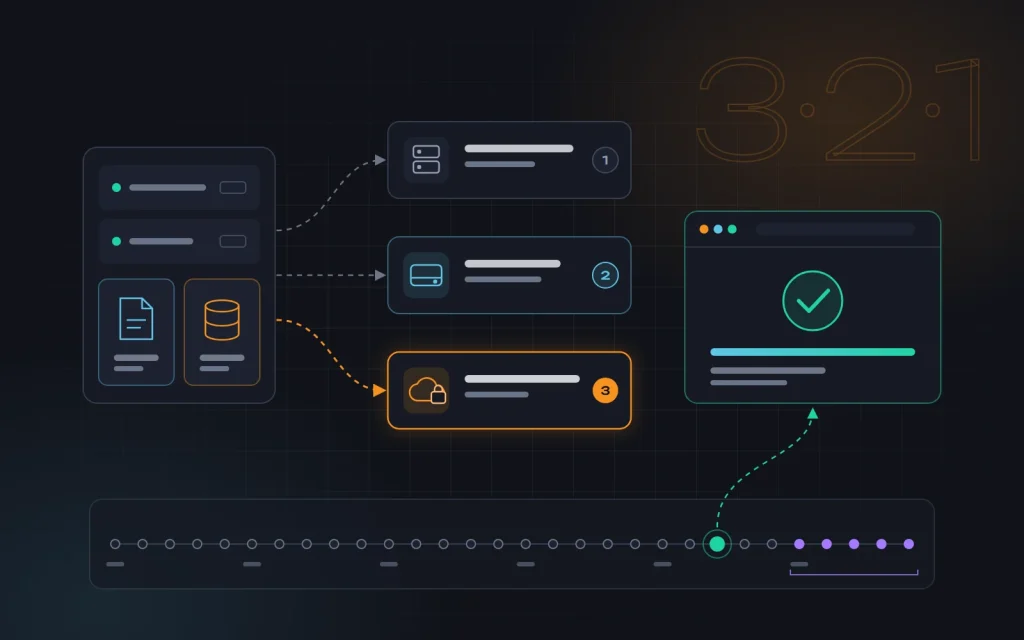
Both hosting tools and plugins such as UpdraftPlus, or similar ones that can push archives to external storage, will do the job. The tool matters less than an automatic process and a verified result.
Step 4. File permissions and server configuration
This step is technical and best handed to your developer or host, but knowing what should be in place helps you ask the right questions.
- File permissions. A typical safe setup is 755 for directories, 644 for files and stricter permissions for
wp-config.php(for example 640 or 600, depending on the host). Setting 777 “so everything works” is an open invitation to attackers. - No code editing from the dashboard. The line
define('DISALLOW_FILE_EDIT', true);inwp-config.phpremoves the built-in theme and plugin editor. If someone does get into the dashboard, they can’t immediately paste malicious code through the browser. - No PHP execution in the uploads folder.
/wp-content/uploads/should contain images and documents, not scripts. A server-level rule prevents any file uploaded there from running. - SFTP or SSH instead of FTP. Plain FTP sends your password unencrypted. For SSH we use keys instead of passwords.
- HTTPS across the entire site, with automatic certificate renewal and a redirect from HTTP.
- A separate database user for each site, with access to its own database only.
- Site isolation. If five sites live in one hosting account, a hack of the weakest one infects them all. Old staging copies and forgotten projects are either deleted or moved to separate accounts.
We also block public access to service files: log files, .git folders, archives like site-backup.zip left in the web root. Forgotten archives with database passwords are a classic audit find. Hosting quality also directly affects speed, which we cover in our website speed optimization service.
Step 5. A WAF and bot protection
A WAF (Web Application Firewall) is a filter that inspects requests to your site and drops suspicious ones before they ever reach WordPress. It blocks common attack patterns, known malicious IP addresses, vulnerability scanners and mass password guessing. Its biggest value is that it often shields you from a freshly disclosed plugin vulnerability before you have had a chance to update.
There are two main approaches, and they complement each other well:
| Type | Examples | Strengths | Limitations |
|---|---|---|---|
| Cloud WAF | Cloudflare, Sucuri | Filters traffic before it reaches the server, reduces load, often adds a CDN and speed gains | Needs correct DNS and caching setup, or it can break forms and the cart |
| WordPress-level WAF | Wordfence, Solid Security and similar | Understands WordPress context, pairs with a file scanner and 2FA | Runs on the same server and uses its resources |
For most business sites we combine domain-level cloud protection with one lightweight security plugin. Don’t install three security plugins at once: they conflict, slow the site and create false confidence.
Beyond the WAF, we rate-limit the login page, forms and site search, and add spam protection to forms, such as an invisible CAPTCHA. Bots hammering forms and search also create load and slow the site down for real visitors.
Step 6. Monitoring: spot problems within hours, not months
The nastiest hacks are quiet. The site looks normal while hosting spam pages, a hidden mobile redirect or a script skimming form data. The owner finds out months later, from customers, the host or Google. Monitoring cuts that delay to hours.
Our minimum monitoring set for a business site:
- Uptime monitoring that checks the site every few minutes and alerts you by email or messenger.
- File integrity checks: a scanner compares core and plugin files against the originals and reports any changes. For the core you can also run
wp core verify-checksumsin WP-CLI. - A user activity log: who logged in, who created a new administrator, who installed a plugin. An unknown administrator account appearing is red flag number one.
- Google Search Console: the Security issues report and email alerts. A sudden jump in indexed pages or strange queries in the Performance report are often the first signs of injected spam pages.
- Login alerts for administrators signing in from a new device or a new country.
A hack hits your search traffic too: a “dangerous site” label in the results, thousands of junk pages in the index, lost trust. Rankings take time to recover, which is why we treat security monitoring as part of our SEO services rather than a separate story. We covered how to keep an eye on the technical health of pages and indexing in On-page SEO basics.
What this looks like in practice
A typical situation: a company website on WordPress, built several years ago. The original contractor is long gone, three employees share a single admin login, more than thirty plugins are installed and some haven’t been updated since launch, and the theme was bought “at a discount” from a third-party site. The host makes backups but keeps them for only a few days.
We start with a fresh off-site backup and a scan for foreign code. Then we create personal accounts with the right roles, enable 2FA, remove unused plugins, replace the unofficial theme with a licensed copy and update everything, including PHP. Next come file permissions, disabling dashboard code editing, a cloud WAF, monitoring and Search Console. After that the site moves to regular maintenance: weekly updates, quarterly access reviews, a test restore. Nobody can promise a site will never be hacked, but the risk drops dramatically, and if something happens, we notice quickly and restore from a clean copy.
The mistakes we see most often
- “We installed a security plugin and forgot about it.” A plugin without updates, 2FA and backups is a “Beware of the dog” sign with no dog.
- One shared login for everyone. You can’t tell who did what, and you can’t revoke access for a single person.
- Plugins deactivated but not deleted. Their code stays on the server and can still be vulnerable.
- Backups stored only on the same server. When the site goes, the copies go with it.
- Putting updates off out of fear that the site will break. The answer is a staging copy and a backup, not skipping updates.
- Forgotten staging copies and old sites on the same hosting account that nobody updates.
- Restoring from backup without finding the cause. If you don’t close the hole the attacker came through, the site will be reinfected within days.
A short WordPress security checklist
- Core, plugins, themes and PHP are up to date; unused plugins are deleted.
- All plugins and themes come from official sources.
- Unique passwords from a password manager, no admin username anywhere.
- 2FA for every administrator and editor.
- Every user has a personal account with the minimum role they need.
- Automatic backups of files and database, external storage, at least 30 days of history, a tested restore.
- File permissions set, dashboard code editing disabled, PHP blocked in uploads.
- SFTP or SSH with keys, HTTPS across the whole site.
- A WAF and login attempt limits.
- Uptime monitoring, file integrity checks, an activity log and Search Console.
Frequently asked questions
Is one security plugin enough?
No. A security plugin is a useful layer, but it won’t update your other plugins, make an off-site backup or get your team to use unique passwords. Protection only works as a system: updates, access control, backups, server configuration, traffic filtering and monitoring.
Is a site on another CMS, or a custom-built one, safer?
Not automatically. WordPress is a frequent target, but its vulnerabilities are also found and fixed faster. An unmaintained custom system can be far more vulnerable; nobody just publishes its holes. Security depends less on the platform than on how well it is maintained.
How often should I deal with website security?
The baseline setup is done once and takes from a few hours to a few days. After that: weekly updates and alert checks, a monthly log review, and a quarterly access review with a test restore. Consistency matters more than volume.
What should I do if my site has already been hacked?
Don’t delete everything in a panic, and don’t restore a backup blindly. First change every password (dashboard, hosting, database, email), preserve the current state for analysis, find the entry point, clean the site or restore it from a copy that is definitely clean, close the vulnerability, and only then put the site back online and request a review in Search Console. Without experience, bring in specialists right away. What an owner can realistically handle alone is covered in DIY SEO: what you can do yourself.
Summary
Securing a WordPress site isn’t a single magic button but six simple habits: timely updates, strong passwords with 2FA, tested off-server backups, correct permissions and hosting configuration, a WAF, and monitoring. Each one closes part of the risk on its own, and together they make your site a far harder target than the thousands of others that bots will break into first.
Security matters most for online stores, where customer data and payments are at stake. If you are planning a launch, we build these practices in from the start of ecommerce development.
If you would like us to check your site and set up proper protection, get in touch. We will run a security audit, sort out access and backups, and take the site on for regular maintenance.
Next
Read more
Core Web Vitals in plain English
“PageSpeed gives us 38 points. Is that a disaster?” Site owners ask us some version of this almost every week. Some got a Search Console email about “poor URLs”, others saw red numbers in a contractor’s report or noticed their site is slower on a phone than a competitor’s. Behind all of these stories are […]
Site migration without losing rankings
“We moved to a new website and our leads from Google disappeared.” A noticeable share of our audits start with that sentence. The story is familiar: a company changes its domain or moves from an old custom system to WordPress, OpenCart or Shopify, the new site goes live on a Friday evening, and two weeks […]
Need advice?
Tell us about the task — we will advise what to do, even if you end up working with someone else.